


Windows Update on Windows 10 installs quality updates (cumulative) and feature updates.
It is very automated but you can configure a lot of options.
For configure updates, It’s not very complicated.
However, if you are wondering about particular options, here is a full guide to configure Windows Update in Windows 10.
Contents
Configure Windows Update on Windows 10
To access Windows Update settings:
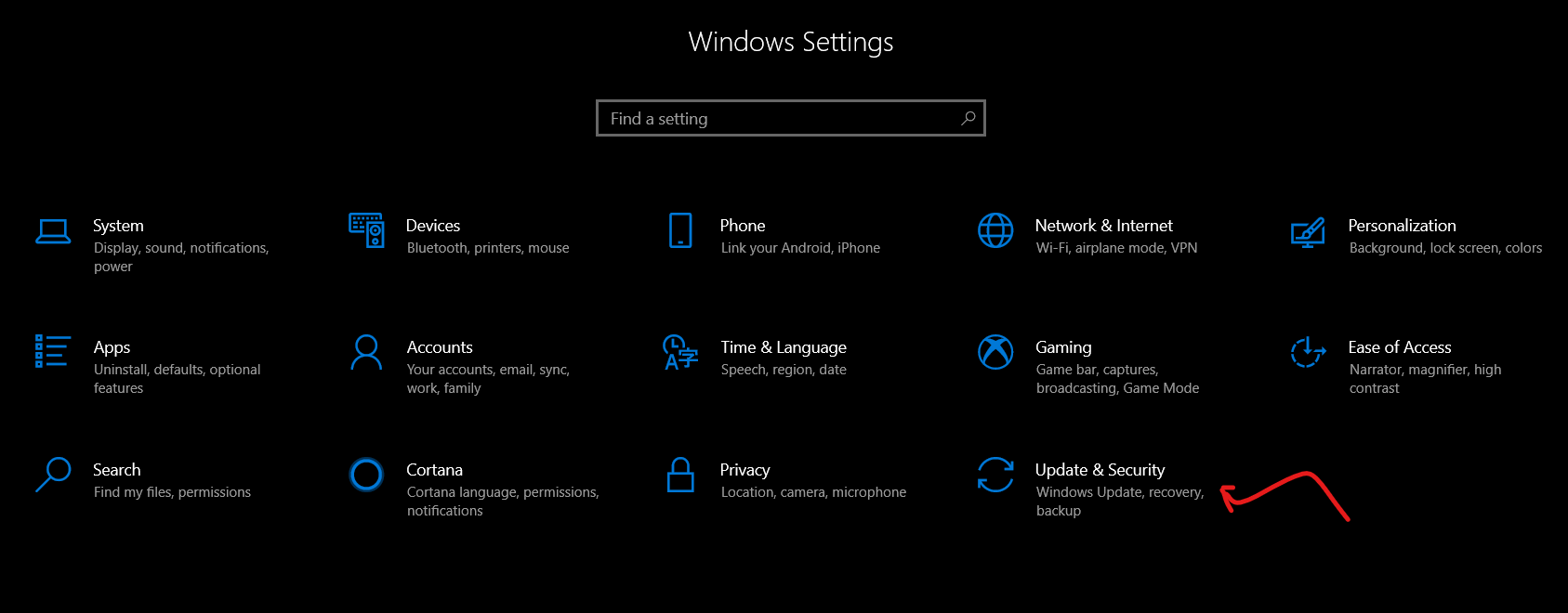
From this location, you can:
- Suspend the update installation for 7 days
- Change activity hours
- View update history
- Advanced options

Here are all the explanations around these Windows Update settings in order to configure the update service.
Pause updates
Windows Update for Windows 10 can sometimes cause problems.
Besides the slowness of the PC, sometimes some updates cause bugs or crashes.
In these cases, you can use the option Pause updates.
This blocks download and install Windows Update for 7 days.
- To do this, click on the suspend button.
- A message then indicates Updates discontinued. The resumption date is displayed.
- To reactivate Windows Update, click on the button resume updates.
Well done ! you have successfully configured Windows Update in Windows 10 to suspend updates.
Change activity hours
Installing updates in Windows 10 requires restarting your PC.
It is therefore necessary to define a time range where the PC is not used.
During this period Windows 10 will not restart your PC automatically to install the updates.
To do this, you indicate the hours of activity and Windows 10 will make sure to install the updates outside this period.
To do this :
- From Windows Update settings
- Click on Change activity hours
- You have two choices:
Windows 10 automatically adjusts the hours of activity of the device.
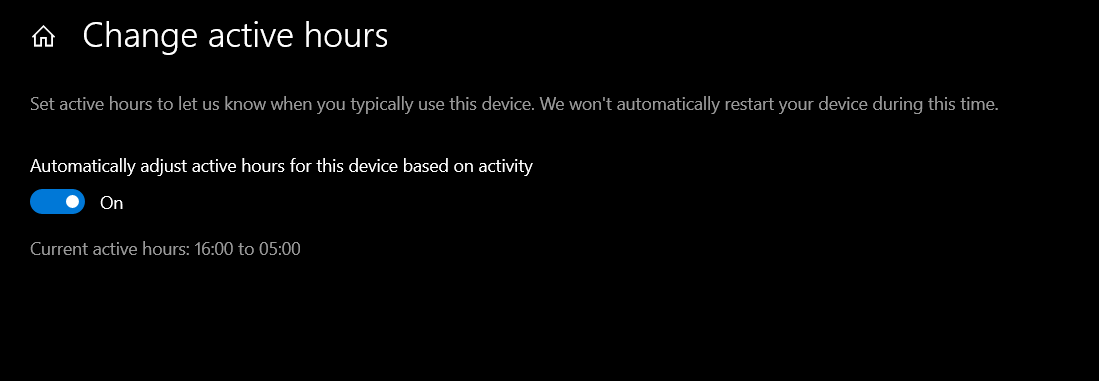
You define these hours yourself by clicking on the Modify button. If the toggle is set to On, turn it off to reveal the Modify option
Indicate the start and end time.

Well done! you’ve successfully set up Windows 10 Windows Update activity hours.
View update history
The update history lists the latest updates that were installed or failed.
This is a handy menu if you think an update may be a problem.
Indeed, you have the installation date.
At the top, the buttons:
- Uninstall updates as the name suggests removes an update from Windows 10.
- Recovery options give access to options for recover.
Well done ! you’ve successfully set up Windows Update for Windows 10 with update history.
Advanced options
Finally in the advanced options, there are various options in bulk.
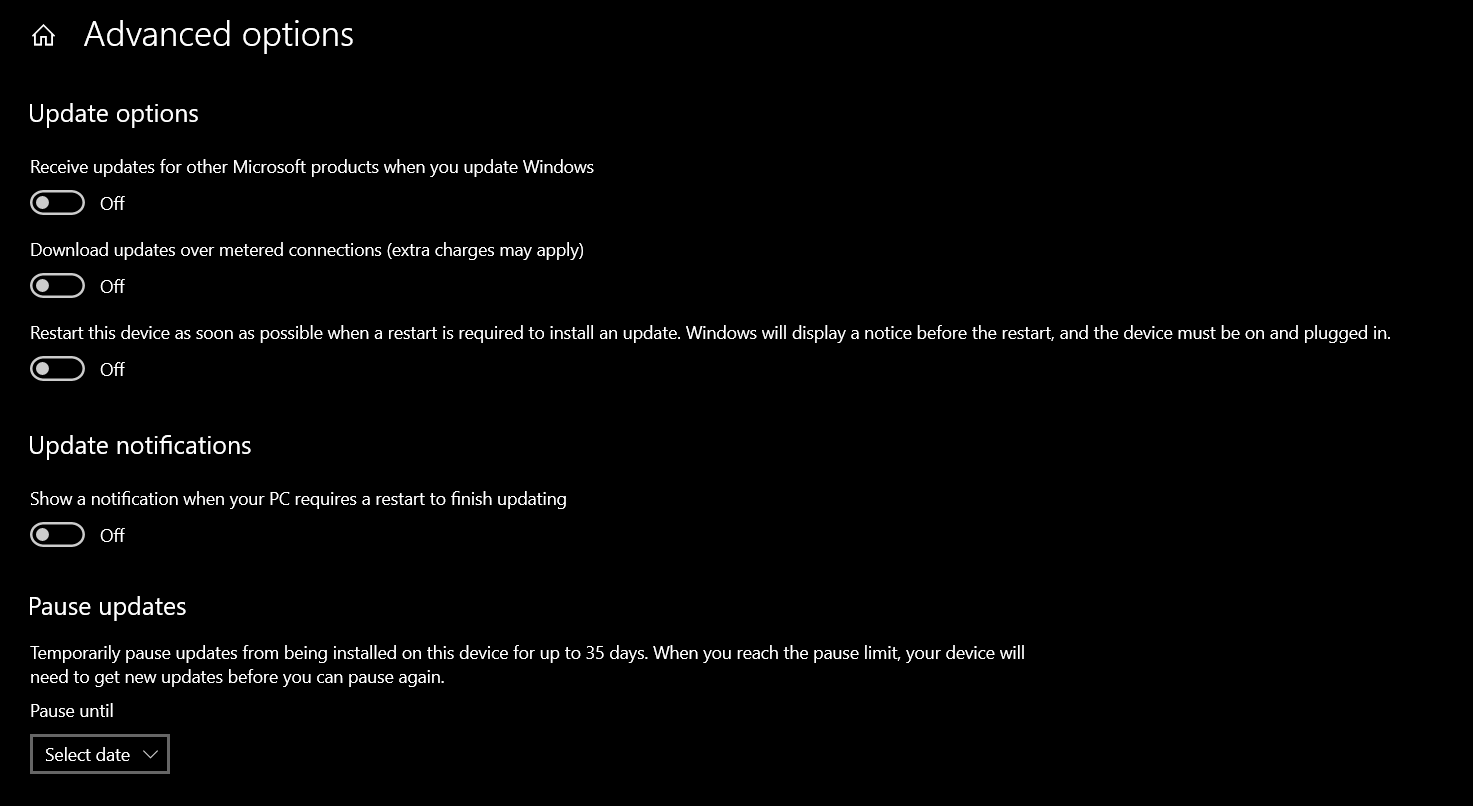
Here are the first additional Windows Update settings
- Receive updates from other Microsoft products when you update Windows. This allows you to update other products.
- Download updates on limited connections. This makes Windows Update strong even if the connection is limited. That is to say with a limited data plan.
- Restart this device as soon as possible when a reboot is required to install the update. Forces the PC to restart to install the update.
Then there are some other options and parameters:
- Display a notification when the PC requires a reboot to complete the update. A Windows 10 notification appears to notify you of the need to restart the PC.
- Interrupt updates: Define a date (max 7 days) to block Windows Update. This allows us to delay the automatic restart.
- Choose when to install an update. You postpone the installation in days for a functionality or quality update.
Finally below, we find the distribution optimization option.
Distribution optimization
Windows 10 updates are very large, especially feature updates.
Downloading can therefore slow down your internet connection.
Windows 10 then plans to configure and define the bandwidth allocated for downloading updates.
This is done in the menu distribution optimization.
From this menu, you authorize the downloading of updates from other PCs.
Indeed, your PC can be used to deliver Windows Update within the network.
If the option is configured on the internet then your internet connection is used to distribute Windows Update updates.
This can therefore slow down your internet connection.
The button Advanced options allow you to define the bandwidth allocated to Windows Update.
You can, therefore, block the speed and quantity of bandwidth to download the updates.
But also the volume of data.
Finally the button Activity Monitor gives information and statistics on the Windows Update download.
Well done! you’ve successfully configured Windows Update distribution options for Windows 10.
Also see-
