


Quick answer: If your WordPress site is displaying raw JavaScript code instead of a normal layout, you most likely have a malicious external script injected into your theme files, database, or plugins. Run a grep scan to find it, remove it from header.php, footer.php, functions.php and wp_options, clear all cache, then turn off aggressive JS optimization. Full step-by-step process below.
One morning my WordPress site stopped being a website and started being a JavaScript exhibition.
Raw code. Everywhere. Layout gone. My flipbook plugin throwing a tantrum. Visitors staring at what looked like the Matrix having a bad day.
My first instinct was Cloudflare. My second was cache. Both wrong. The real cause was a single hidden line pulling in an external script from a domain I had never seen in my life.
This is exactly how I found it, killed it, and made sure it could not come back. No overcomplicated theory. Just the steps that actually worked.
Contents
What Does a Malicious Script Injection Actually Look Like?
Most people expect a hack to look dramatic. A defaced homepage. A skull. A ransom note.
Reality is quieter and weirder.
Here is what I saw when I visited my own site:
- Raw JavaScript code printing across the page as plain text
- Broken layout on every page, not just one
- Flipbook PDF viewer completely dead
- A suspicious external URL loading in the browser console
The console showed this loading automatically on every page:
https://haskell.pages.dev/assets/vendor.bundle.jsThat domain had nothing to do with my site. I did not add it. No plugin I installed should have added it either. It was loading silently, on every page, every time a visitor arrived.
That is the signature of a script injection: malicious code quietly added to your site that pulls in an external JavaScript file the attacker controls. Think of it like someone slipping a tracking device onto your car. You’re still driving. It looks fine. But someone else is along for every ride.
According to research by Sucuri, over 200 WordPress sites were found infected with a similar external script injection pattern in late 2024 alone. Small number globally, massive problem if it is your site.
Related: Fake Cloudflare Verification Page? Here’s How to Fix It
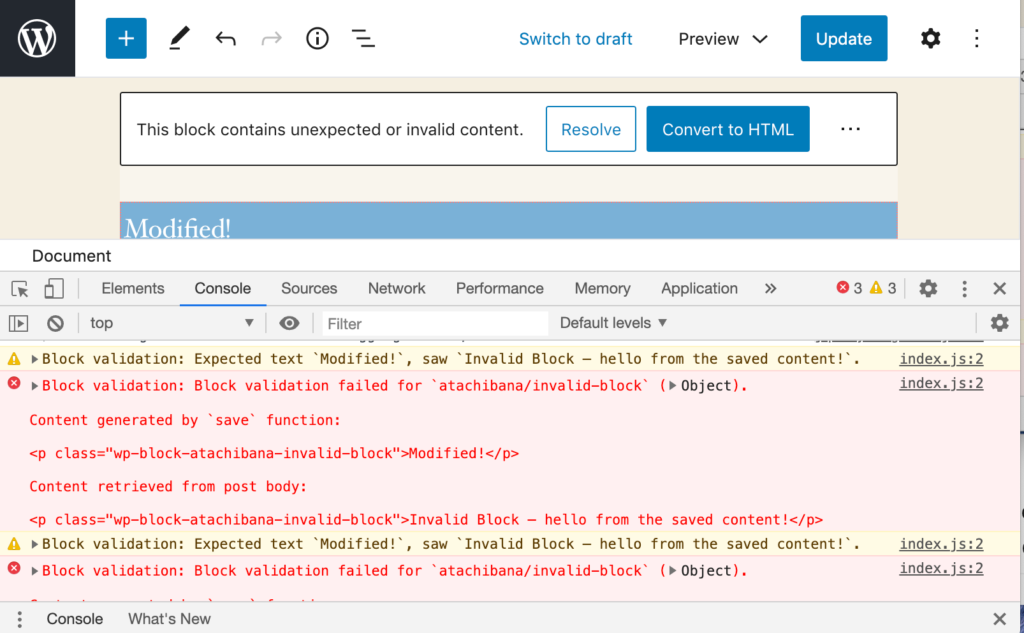
Why This Is More Dangerous Than It Looks
A broken layout is annoying. What’s happening underneath it is worse.
An injected external script gives an attacker real-time control over what runs on your site. Every visitor who lands on your pages is exposed. The script can:
- Steal session data and cookies from your visitors
- Redirect users to phishing pages or spam sites
- Run drive-by malware downloads in the background
- Tank your SEO rankings when Google flags the domain
- Break your site functionality completely, as mine found out
The painful part: your server looks completely clean. The HTML it sends out is fine. The infection only appears when the browser pulls in that external script and tries to execute it. That is exactly why it took me longer than it should have to find it.
I had a client once who ran a membership site. An injected script redirected their logged-in users to a casino platform for three days before anyone reported it. They lost 40% of that month’s renewals and spent weeks rebuilding trust. One line of code. Three days. Real damage.
Step 1: Rule Out the Server First
Before you assume injection, confirm the issue is frontend and not a server-side PHP error or a misconfigured hosting setup.
Run this from your terminal:
bash
curl https://yourwebsite.com
If the server returns clean HTML with no raw JS dumped into it, the server is fine. The problem is happening in the browser when it loads and executes what the server sent.
In my case the server output was clean. That told me immediately: something in the rendered page is pulling in an external script that breaks execution.
Step 2: Run a Malware Scan
Start with an automated scan before you go digging manually. Use two tools, not one. They catch different things.
Wordfence (free) scans your WordPress files and flags known malicious patterns.
Sucuri SiteCheck (free, runs from outside your server) checks what your site actually loads in a browser, including any external domains being called.
Run this grep command on your server to catch common injection patterns:
bash
grep -r "eval\|base64_decode\|gzinflate\|shell_exec" .
In my case this returned only WordPress core files. No obvious malware. The scanner came up clean too.
Shocking, I know. The injection was clean enough to avoid the standard patterns. That is when I had to get specific.
Step 3: Hunt the Injected Script Directly
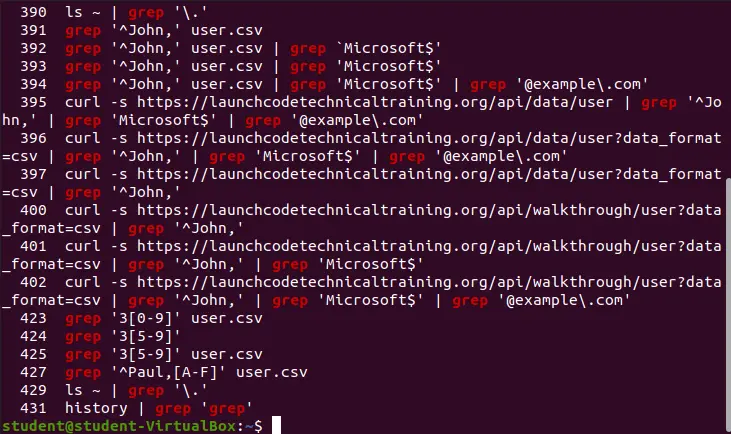
This was the step that cracked it. Instead of scanning for generic malware patterns, I searched for the specific domain I had spotted in the browser console.
bash
grep -r "haskell.pages.dev" .This is the most direct approach when you know the suspicious domain or script URL. You are not looking for malware patterns. You are looking for exactly where that one line lives.
Run the same approach for any suspicious domain you spotted:
bash
grep -r "suspiciousdomain.com" .Check these locations if the grep finds nothing in files:
wp-content/themes/your-theme/header.phpwp-content/themes/your-theme/footer.phpwp-content/themes/your-theme/functions.php- Any active plugin files
- Your database
wp_optionstable
The injection is almost always in one of these. They are the files that load on every page. That is exactly why attackers target them.
Step 4: Remove the Malicious Script
Once you find the injection, removing it is the easy part. Finding it is the work.
From theme files: Open header.php, footer.php, or functions.php via SFTP. Find the injected script tag and delete it. Save the file. It will look something like this:
html
<script src="https://suspiciousdomain.pages.dev/assets/vendor.bundle.js"></script>
One line. Easy to miss. Easy to delete.
From the database: Log into phpMyAdmin. Open the wp_options table. Search for the suspicious domain name. If you find it stored in an option value, edit that row and remove the injected script.
sql
SELECT option_name, option_value
FROM wp_options
WHERE option_value LIKE '%suspiciousdomain%';
From plugin files: If the grep pointed to a plugin file, delete that plugin entirely. Do not edit it. Remove it and reinstall a clean copy from WordPress.org.
Step 5: Clear Every Layer of Cache
After removing the script, the injection can still appear if any caching layer still holds the old infected output.
Clear everything. In order:
bash
rm -rf wp-content/cache/*
rm -rf wp-content/litespeed/*
Then from your WordPress dashboard:
- Clear your caching plugin cache (LiteSpeed, WP Rocket, W3 Total Cache)
- Clear Cloudflare cache if you use it (Caching → Purge Everything)
- Clear your browser cache and test in a fresh incognito window
Most people clear one layer and wonder why the problem is still there. Cache is like an onion. You have to peel all of it.
Step 6: Fix the JS Optimization Conflict
Here is where my case had an extra layer most guides do not mention.
Even after removing the injected script, my layout was still partially broken. That was not the injection. That was my JS optimization settings reacting badly to the cleanup.
JS Combine, Minify, and Defer are features in caching plugins like LiteSpeed Cache that bundle and delay JavaScript loading. They speed up most sites. They break sites that have heavy JavaScript-dependent plugins.
Turn these off temporarily:
- JS Combine: OFF
- JS Minify: OFF
- JS Defer: OFF
Then test the site. If it renders correctly, the optimization was conflicting with your scripts. You can turn them back on one at a time to find the specific setting causing the problem.
This is the opinion I will stand behind: optimization plugins are not always safe in every scenario. Running them blindly without testing is how you create your own crisis and then blame a hacker for it.
Step 7: Resolve the Plugin Conflict
In my case the culprit combination was DearFlip (a flipbook PDF viewer plugin) combined with aggressive JS optimization.
DearFlip loads heavy JavaScript to render interactive PDFs. When LiteSpeed Cache tried to combine and defer all scripts, it broke DearFlip’s execution order. The plugin could not initialize. The raw JS dumped to the page instead of running.
The fix: exclude DearFlip from JS optimization.
In LiteSpeed Cache: Optimize → Exclude JS → add the plugin’s JS file path.
If you use WP Rocket: File Optimization → Excluded Files → add the path.
This is not about the plugin being bad. It is about knowing which plugins cannot handle aggressive optimization and making exceptions for them. Heavy JavaScript plugins like page builders, PDF viewers, interactive maps, and sliders often need this.
Step 8: Verify the Site Is Actually Clean
Most guides end at “remove it and clear cache.” This step is what competitors skip.
Do not trust your own eyes on your own machine. You are likely cached. Do three checks:
1. Incognito browser, different device if possible. Load your site in a fresh incognito window. Check the layout on mobile too.
2. Re-run Sucuri SiteCheck. Go to sitecheck.sucuri.net and run a fresh scan on your domain. It should return zero flagged external scripts.
3. Check browser developer tools. Open your site. Press F12. Go to Network tab. Reload the page. Filter by “Script”. Look at every JS file loading. Anything from a domain you did not add should not be there.
Run this check again 24 hours later. Some injections are designed to re-insert themselves. If it comes back, there is a backdoor still present in a file or database entry you missed.
Root Cause: How It Got In
After the cleanup I traced it back.
The injection entered through a vulnerable or compromised plugin. Attackers look for outdated plugins with known vulnerabilities, then inject their script into files that load on every page. Header.php is the favourite because it loads first, on every page, every visit.
In my case:
- An outdated plugin had a known vulnerability
- The attacker exploited it to write one line into header.php
- That one line loaded their external script
- Their script broke my rendering and gave them control of what ran in every visitor’s browser
One line. One outdated plugin. That is all it takes.
How to Prevent It Happening Again
1. Keep everything updated. WordPress core, themes, every plugin. Known vulnerabilities are publicly listed within days of discovery. Bots scan for them automatically. An unpatched plugin is an open door.
2. Scan regularly. Set Wordfence to run weekly scans automatically. Set up email alerts for file changes. You want to know the moment something is modified that should not be.
3. Monitor external scripts loading on your site. Add a Content Security Policy (CSP) header. This tells browsers to only load scripts from domains you explicitly allow. Any injected external script gets blocked before it can execute.
4. Disable file editing in WordPress. Add this to wp-config.php:
php
define('DISALLOW_FILE_EDIT', true);
This stops anyone with admin access from editing theme and plugin files directly from the dashboard. One less attack surface.
5. Use trusted plugins only. If you cannot find a plugin on WordPress.org or the official developer site, do not install it. Nulled plugins are the single most common entry point for exactly this type of injection.
6. Set file permissions correctly. Core files: 644. Directories: 755. wp-config.php: 600. Attackers who inject scripts often change permissions to 777 (full access for everyone). Check and reset after any incident.
FAQ: People Also Ask
Why is my WordPress site showing raw JavaScript code?
Most likely cause is a malicious external script injected into your theme files or database that is breaking normal page rendering. It can also be caused by a JS optimization conflict where a caching plugin is combining or deferring scripts in a way that breaks a heavy JavaScript plugin. Check both before assuming you are hacked.
How do I find a malicious script in WordPress?
Start with a Wordfence or Sucuri SiteCheck scan. Then run a targeted grep command using the suspicious domain you spotted in your browser console: grep -r "suspiciousdomain.com" . Check header.php, footer.php, functions.php, and the wp_options table in your database.
Can a single injected script really break my entire site?
Yes. If the injected script loads before other scripts execute, or if it interferes with how JavaScript runs on the page, it can break layout, plugins, and functionality site-wide. One line in header.php loads on every page of your site.
What is the difference between a script injection and a plugin conflict?
A script injection is malicious code added by an attacker. A plugin conflict is two legitimate plugins or settings clashing. They can cause identical symptoms. The difference is found in the source: check your browser console for any external domain you did not add. That is injection. If all scripts are from your own domain and things are broken, that is more likely a conflict.
How do I stop external scripts from loading on my WordPress site?
Add a Content Security Policy (CSP) header to your site that whitelists only the domains you actually use. Any external domain not on the list gets blocked by the browser automatically.
Will clearing cache fix a script injection?
No. Clearing cache removes the stored output but not the injection itself. You must remove the malicious script from the file or database first, then clear cache. If you only clear cache, the injection will just rebuild the cached output again on the next page load.
How long does it take to fix a WordPress script injection?
If you can identify the domain quickly and the injection is in a single file, 30 to 60 minutes. If it is spread across multiple files or injected into the database, budget 2 to 4 hours. Always run a verification scan after cleanup.
Final Word
Fixing a WordPress script injection is not complicated once you know where to look. The problem is that most people panic, try three things at once, and miss the one grep command that would have shown them the answer in 10 seconds.
Stay systematic. Check the server first. Scan next. Hunt the specific domain. Remove it. Clear cache. Verify.
Your site is recoverable. I’ve seen worse. Usually caused by one outdated plugin nobody thought to update.
Dealing with a broken site right now? I’ve been through the 2am panic of watching raw code pour across a page that was fine yesterday. If your site is showing something it should not, contact me and I’ll help you find and kill it fast.
Sources: Sucuri Security Blog, Wordfence Threat Intelligence, WordPress.org Security Documentation
