


Quick answer: If your WordPress site is hacked, put it in maintenance mode immediately, back up the infected version, scan with Wordfence or Sucuri, delete infected files, reinstall clean WordPress core, clean your database, remove fake admin users, change every password, and harden your site. Full steps below.
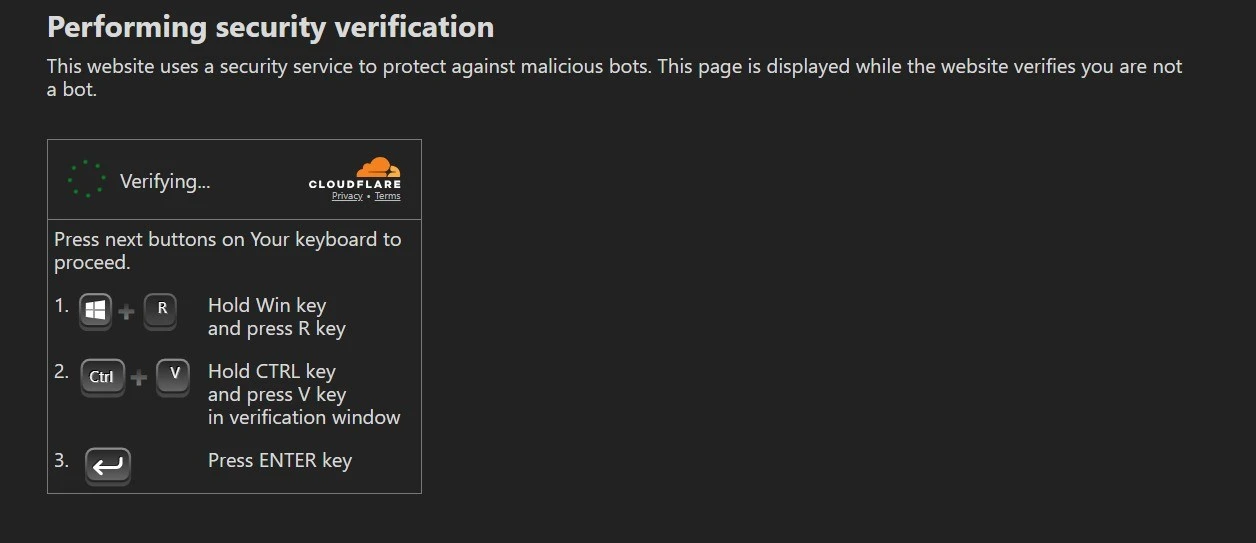
Your website loads fine for you. But your visitors? They’re staring at a fake Cloudflare verification screen telling them to press Win + R, paste something, and hit Enter.
That’s not a security check. That’s a hacker using your site to attack your visitors.
This is my real case study of hacked WordPress site recovery after a Hacktool:PHP/killsite infection. No fluff, no theory. Exactly what I did, step by step.
Contents
How Do You Know Your WordPress Site Is Hacked?
Before you do anything, confirm you’re actually dealing with a hack. Surprising how many people spend hours “cleaning” a false alarm.
Watch out for:
- Fake Cloudflare verification pages: Real Cloudflare never asks you to run commands on your computer. If you see “Press Win + R → Ctrl + V → Enter,” that’s a ClickFix malware attack running through your site.
- Strange redirects: Visitors land on pharma sites, adult content, or spam pages. You won’t see it when logged in. Check in incognito mode from a different device.
- Google warnings: “This site may be hacked” or “Deceptive site ahead” in Chrome.
- Unknown admin users: Someone you didn’t create has admin access.
- Locked out of your dashboard: The hacker changed your credentials.
- Sluggish performance out of nowhere: Malware consuming your server resources.
In my case: visitors were shown a fake Cloudflare page with instructions to run commands locally. The malware type was identified as Hacktool:PHP/killsite, a PHP-based tool that lets hackers hide admin users, create secret backdoor access, and fully control your site.
Shocking, I know. Turns out installing nulled plugins has consequences.
Step 0: Before You Touch Anything – Do These First
Most guides skip this. Don’t.
1. Enable maintenance mode. Stop visitors from hitting infected pages while you work. Use a plugin or add this to your .htaccess temporarily:
apache
RewriteEngine On
RewriteCond %{REMOTE_ADDR} !^YOUR.IP.HERE$
RewriteRule ^(.*)$ /maintenance.html [L,R=302]
2. Contact your host. Tell them your site is compromised. They can provide server logs, identify entry points, and in some cases quarantine the infected environment. Don’t skip this. Good hosts are genuinely useful here.
3. Back up the infected version. Yes, even the hacked one. Label it infected-backup-[date] and keep it offline. You might need it for forensics later, to understand how they got in and what they changed.
Step 1: Identify the Hack
Scan your site using a security plugin. I used Wordfence free, thorough, and doesn’t require you to be a developer.
What I found:
- Multiple infected plugin files, including
lib-addons.php - Malware type: Hacktool:PHP/killsite
- Injected code like:
php
_action('pre_user_query', array(&$this, 'hideadminuser'))
What this code does: it hooks into WordPress’s user query system to hide admin accounts from the dashboard. You can’t see them. They can. Full control, invisible backdoor.
Infected plugins in my case: Elementor Pro, Header Footer Elementor, MetForm, and others. Same malware injected across multiple plugins. That’s a deep infection, not a one-file fix.
Run two scanners if you can: Wordfence and Sucuri SiteCheck catch different signatures.
Step 2: Understand the Damage
The infection spread across multiple plugins. This means:
- You can’t just delete one file and call it done
- Every plugin folder is potentially compromised
- Your database may have injected scripts too
- There may be backdoors hidden in places you haven’t checked yet
One of my clients had their contact form broken for 6 weeks after a similar attack, no error, no alert, just silent lead loss. The hack was subtle. Always assume the damage is deeper than what you can see.

Step 3: Clean the Website – The Fastest Method
I chose a clean reset over trying to fix individual files. Here’s why: when malware is injected into 5+ plugins, hunting each infected line is like finding a needle in a haystack that’s also on fire.
Delete these:
/wp-admin/wp-includes/wp-content/plugins
Keep these:
/wp-content/uploadswp-config.php
Your uploads and config are safe for now. I’ll check them next.
Step 4: Reinstall Fresh WordPress Core
- Download the latest WordPress from WordPress.org
- Upload clean core files via SFTP, replacing
wp-adminandwp-includes - Reinstall every plugin directly from wordpress.org or the official developer source
One rule. Non-negotiable: no nulled plugins, no cracked themes. That’s almost always how they got in. “Free” premium plugins are the most expensive thing you’ll ever install.
Step 5: Clean the Uploads Folder
The /wp-content/uploads folder is where your images live, and also where hackers love to hide.
Check for PHP files in uploads:
bash
find wp-content/uploads/ -name "*.php" -type f
PHP files have zero reason to be in your uploads folder. Delete every single one you find.
Step 6: Database Cleanup
Hackers don’t just infect files. They inject scripts into your database. This is where most DIY cleanups fail.
Search your database for:
<script>base64eval(atob(
Check these tables specifically:
wp_options: a favourite for injected redirectswp_posts: hidden links, spam content
Use phpMyAdmin or a query like:
sql
SELECT ID, post_title, post_content
FROM wp_posts
WHERE post_content LIKE '%eval(%';
Clean every infected entry you find. If you’re not comfortable here, this is the step where professional help earns its cost.
Step 7: Remove Hidden Admin Users
Remember that hideadminuser code? Time to undo its work.
Check two places:
1. WordPress dashboard: Go to Users → All Users. Look for anyone you didn’t create. Delete them immediately.
2. Your database directly: Open wp_users in phpMyAdmin. Look for accounts with admin-level capabilities you don’t recognise.
Hackers create these to maintain access even after you think you’ve cleaned everything. If you miss this step, they’re back in within hours.

Step 8: Change Every Password
Assume every credential is compromised. Change all of them:
- WordPress admin password
- Hosting control panel password
- Database password (update
wp-config.phpto match) - FTP/SFTP credentials
- Email address associated with your WordPress account
Use a password manager. Use long, random passwords. This isn’t optional.
Step 9: Get Off Google’s Blacklist
If Google flagged your site, cleaning it isn’t enough. You need to tell Google it’s clean.
- Go to Google Search Console
- Navigate to Security & Manual Actions → Security Issues
- Review the flagged issues
- Click Request a Review
- Briefly explain what you found and what you fixed
According to Google’s own documentation, review responses typically come within a few days. Until you do this, your site may still show browser warnings even after the malware is gone.
Root Cause: Why It Happened
After the cleanup, I traced the entry point.
- Nulled/pirated plugin: the number one cause. Every cracked plugin is a potential backdoor delivered to your server on purpose.
- Outdated plugins: vulnerabilities in old plugin versions are publicly listed. Bots scan for them automatically.
- No security monitoring: the hack had been running for days before anyone noticed.
The hacker didn’t personally target this site. Bots scan millions of WordPress installations looking for known vulnerabilities. Your site wasn’t special. It was just accessible.
How to Prevent This From Happening Again
You’ve cleaned the house. Now lock the doors.
1. Only use original plugins and themes. Always. No exceptions.
2. Keep everything updated. WordPress core, plugins, themes. Every update patches vulnerabilities.
3. Install a security plugin. Wordfence or Sucuri. Enable the firewall. Set up regular scans.
4. Set up off-site backups. Daily. Stored somewhere other than your hosting account. If your host is compromised, on-site backups go down with it.
5. Disable file editing in WordPress. Add this to wp-config.php:
php
define('DISALLOW_FILE_EDIT', true);
This stops anyone, including a hacker with admin access, from editing your theme and plugin files directly from the dashboard.
6. Enable two-factor authentication (2FA). Wordfence includes this. It’s free. It blocks brute-force login attacks completely.
7. Change your default login URL. Moving from /wp-login.php to a custom URL removes you from automated attack scripts overnight.
FAQ: People Also Ask
How do I know if my WordPress site has been hacked?
Look for fake verification pages (especially fake Cloudflare), unexpected redirects to spam sites, unknown admin users, a Google “This site may be hacked” warning, or being locked out of your dashboard. Check in incognito mode from a different device. Some redirects only trigger for logged-out visitors.
Can I clean a hacked WordPress site without coding knowledge?
Yes, mostly. Security plugins like Wordfence and Sucuri handle scanning and removal. The database cleanup step is where things get technical. If malware keeps coming back after cleaning, that usually means a backdoor is still present and it’s worth getting professional help.
Will recovering my site remove all backdoors?
A thorough cleanup (fresh core files, database scan, uploads check, hidden user removal, all passwords changed) covers the vast majority. Advanced persistent infections can leave hidden backdoors in unexpected places. Always run a second scan 24 hours after cleanup to confirm.
How long does WordPress hack recovery take?
Simple infections with a clean backup: 2-4 hours. Deep infections like the one in this case study (multiple plugins, database injection, hidden users): 6-12 hours. If you’re doing this for the first time, budget a full day.
What should I do if Google marks my site as “Deceptive” or “Hacked”?
Clean the site first, then submit a review request via Google Search Console → Security Issues. Google typically reviews within a few days. The warning disappears once they confirm the site is clean.
Can hackers come back after I clean my site?
Yes, if the entry point isn’t closed. Most reinfections happen because passwords weren’t changed, the vulnerable plugin was reinstalled, or a backdoor was missed during cleanup. Change everything, update everything, and monitor with a security plugin.
Final Word
Recovering a hacked WordPress site feels overwhelming when you’re in it. But it’s a process. Once you’ve been through it once, you’ll never look at plugin updates the same way again.
Identify the infection. Clean everything, not just the obvious files. Reinstall clean. Secure what you missed the first time around.
Your site is recoverable. I’ve seen worse.
Need help cleaning your site? I’ve been through it: the 2am panic, the hidden users, the injected database entries. If your site is showing fake Cloudflare pages, strange redirects, or any of the signs above, contact me and I’ll walk you through it step by step.
Sources: Wordfence Threat Intelligence, Google Search Console Help, WordPress.org Security Documentation
