
Close Menu
    Facebook X (Twitter) Instagram
    • Privacy Policy
    • Facebook Page
    • Channel
    • Twitter
    • Sitemap
    Facebook X (Twitter) Instagram
    TechulkTechulk
    • Menu
      • Blogging
      • Android
      • Apps
      • Rooting/Flashing
      • Games
    • How-To
    • Troubleshooting
    • Reviews
    • News
      • Latest
      • Trending
      • Around The Web
    • Affiliate Disclosure
    TechulkTechulk
    Home»How-To»Websites not opening on mtnl/bsnl broadband networks [fix]
    How-To

    Websites not opening on mtnl/bsnl broadband networks [fix]

    Shravan DasBy Shravan DasJune 7, 2015Updated:July 13, 20162 Comments3 Mins Read
    Facebook Twitter Pinterest LinkedIn Tumblr WhatsApp Email
    Share
    Facebook Twitter LinkedIn WhatsApp Pinterest Email
    Like all of you guys, from past years I am using MTNL broadband connection for seamless internet access. Later on I found that there were some problems with loading websites as it showed me “Webpage not available” error each and every time when I tried to access a particular webpage. It was like most of the E-shopping websites like Amazon, Flipkart and Snapdeal were displaying the same following error. Digging more deeper into the issue I found that not only me but others too are also having the same problem with their broadband connections too. So today we will be fixing this issue step by step,

    how to fix webpage not available error with mtnl broadband connection?
    • First of all we are going to enter your router’ssettings of the modem.
    • For that enter 192.168.1.1 in the URL box of your browser.
    • Then a popup will occur where you have to enter the User name and your respective password,


    (by default in most cases the user name and password is “admin” , if didn’t worked then you have to enter your costumer ID/Number mentioned in your landline’s bill in the password section)


    Note: You can also change the password after successfully entering in the settings under the “device settings” section for more convenience.
    • Now open a new tab and type OpenDNS.com
    • Now under Personal>>Enhanced DNS. You will find 2 OpenDNS IP Addresses mentioned down in a box, jot it down or copy both of the addresses somewhere else.
    • Now back in your router’s settings goto Advanced Setup>>DNS


    There you will find your default DNS IP Address boxes, as Primary & Secondary.[As shown in the image]


    Note: You can copy those default IP address of yours and keep it somewhere safe just as a backup.


    • Now paste those Addresses that we copied from the OpenDNS there,
    The first box should go as Primary DNS server and second will go as Secondary DNS server.
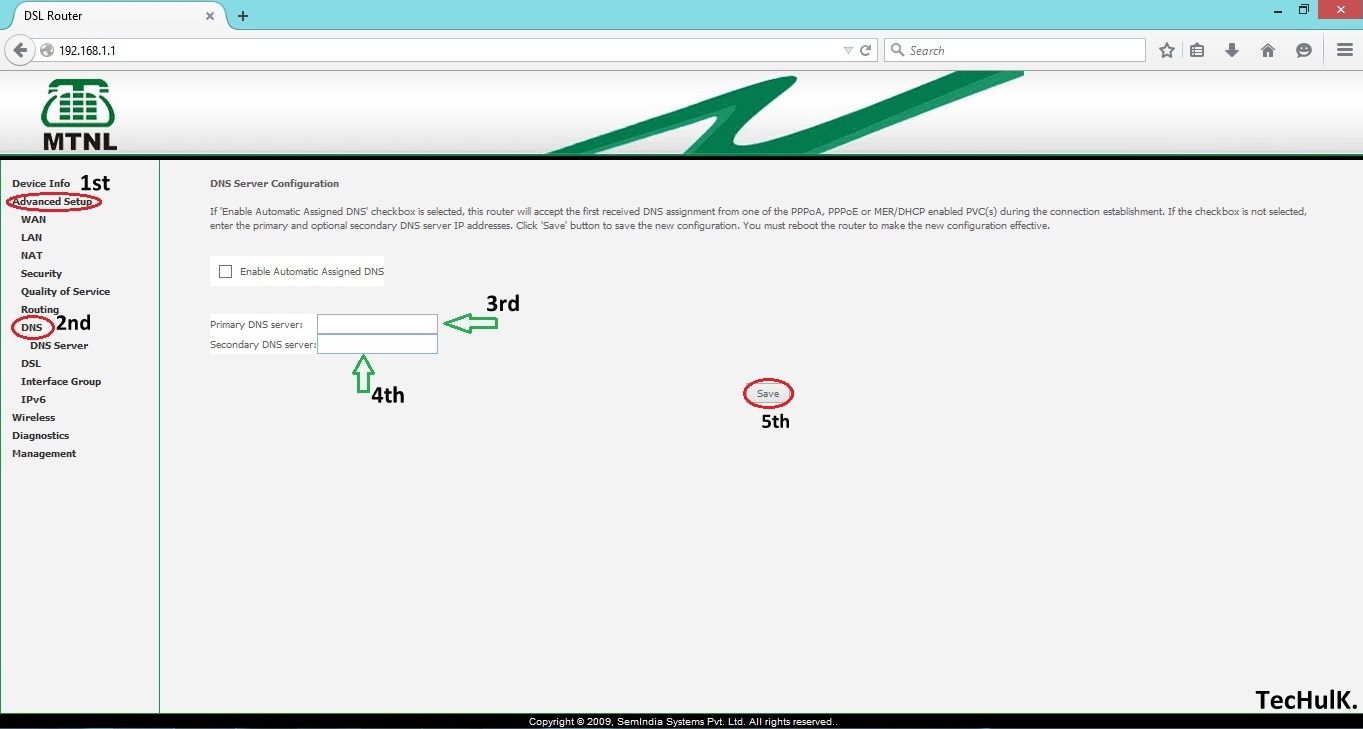
    Webpage not available fix
    • Now finally just hit the save option!! It will take a while to save the settings. After that try to open those websites which were not opening on your browser before, it will be opening from now on-wards after applying the following method.
    You can also backup and download your whole settings in your storage to stay safe while playing with your modem’s settings under Management >> Backup settings.
    That’s it!! isn’t it so simple? or if you have any kinda problems or doubts hassle free comment it down below.
    error fix mtnl
    Share. Facebook Twitter Pinterest LinkedIn Tumblr WhatsApp Email
    Shravan Das
    • Website
    • Facebook
    • X (Twitter)
    • Instagram
    • LinkedIn

    A Tech Geek who loves to write about WordPress blogging, How-To's, and fixing errors. He founded techulk with the sole purpose of providing visitors the exact information they need with simple and step-by-step working explanations.

    Related Posts

    Canva Pro: Your Ultimate Online Design Tool (2024)

    December 10, 2024

    A Beginner’s Guide to Understanding Roku and How It Works

    April 24, 2023

    Does Panda Express take Apple pay

    March 10, 2023

    Does Safeway take Apple Pay?

    March 1, 2023

    Does Wingstop Take Apple Pay

    February 21, 2023

    Does Home Depot Take Apple Pay?

    February 17, 2023
    View 2 Comments

    2 Comments

    1. Anonymous on July 29, 2015 5:35 am

      Thanks a lot!

      Reply
    2. Anonymous on July 6, 2015 10:41 pm

      I tried with 'admin' and my CA NO. in the password box in the pop up that asks for the user name and password, but it didn't work. I also tried my mtnl landline number in the password box, but it shows error

      Reply
    Leave A Reply Cancel Reply

    This site uses Akismet to reduce spam. Learn how your comment data is processed.

    – Ads –
    Recent Comments
    • Shravan Das on What is CAMRIP, DVDRIP, HDTS, HDTV & other releases?
    • Gumby on What is CAMRIP, DVDRIP, HDTS, HDTV & other releases?
    • ajay kumar on Kerala vision broadband Review & Plans
    • Ravindran on Change Jio fiber login password | Easy Guide 2020
    – Ads –
    Facebook X (Twitter) YouTube Instagram
    • Privacy Policy
    • Facebook Page
    • Channel
    • Twitter
    • Sitemap
    © 2025 Techulk

    Type above and press Enter to search. Press Esc to cancel.