


Last Updated: July 2026, verified on Windows 10 and Windows 11
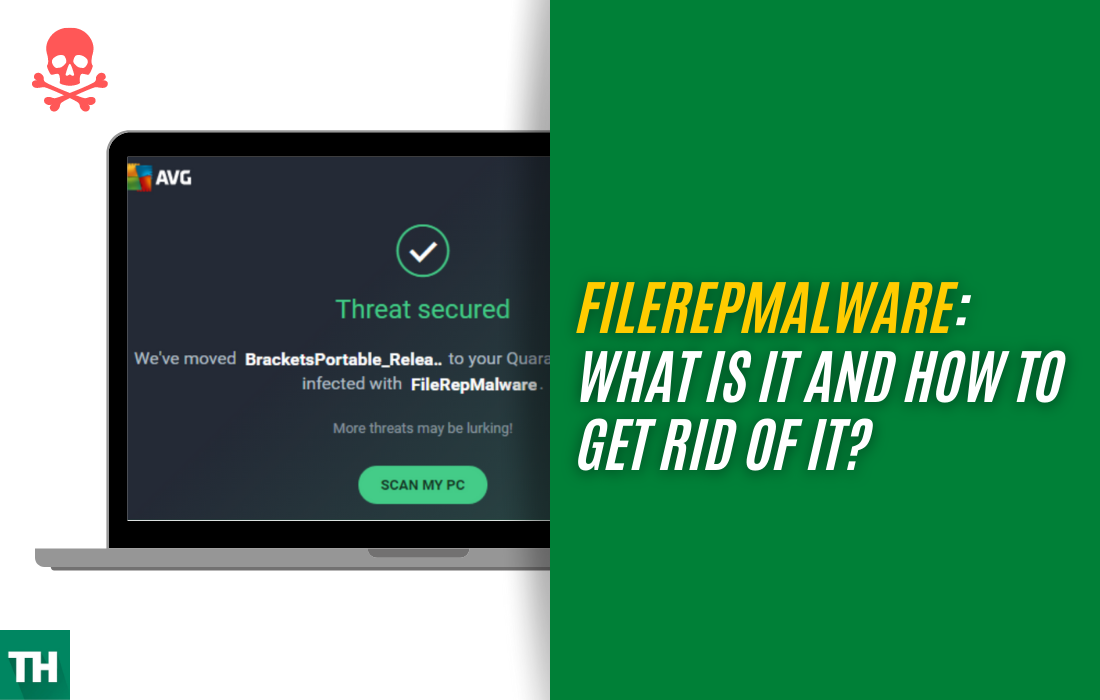
If Avast, AVG, or another antivirus just flagged a file as FileRepMalware, here is how to fix filerepmalware fast. This is not a specific virus. It is a reputation based detection, meaning the file is either genuinely unwanted, bundled with something you did not ask for, or a false positive on a rare or new file. The fix below works whether it turns out to be real or nothing at all.
TL;DR
- What it is: a reputation based detection from Avast or AVG, not a confirmed virus name.
- Is it dangerous: usually a false positive, but scan first before deciding either way.
- Quick fix: run Malwarebytes, check the file on VirusTotal, then update and rescan with Avast or AVG.
Contents
What Is FileRepMalware?
FileRepMalware is a detection name, not a virus name. Avast and AVG use it to flag files their reputation system has not seen enough times to trust, based on how few other users on their network have that exact file, not necessarily on what the file actually does.
That single fact explains most of the confusion around this detection. A brand new program from a small developer can trigger it just as easily as genuine malware, purely because too few Avast or AVG users have installed it yet for the system to trust it.
This detection is not tied to one Windows version. It shows up on Windows 10 and Windows 11 equally, and older reports exist for Windows 7 and 8.1 as well.
Is FileRepMalware Dangerous?
Sometimes, and sometimes not at all. Reputation based detections like this one range from completely harmless to genuinely malicious, and the tag alone does not tell you which. Read the variant explained below, since that narrows it down considerably. Then run the fix methods further down this page to get a real answer instead of guessing.
The FileRepMalware Variants Explained
You will usually see one of three tags attached to the base FileRepMalware name. Each one means something different.
FileRepMalware [Misc]
The most common variant by far. This is Avast and AVG’s catch all category for files with low reputation that do not clearly fit trojan or adware behavior. Often a false positive, especially on niche or newly released software.
FileRepMalware [Trj]
The Trj tag means trojan like behavior was detected alongside the low reputation flag. This is more serious than Misc and worth taking straight to Method 1 and Method 2 below before doing anything else.
FileRepMalware [PUP]
PUP stands for potentially unwanted program. This usually means the file arrived bundled with something else you installed on purpose, common with free software installers, download managers, and browser toolbars. Not always dangerous, but rarely something you actually want running.
Related Detections You Might Also See
A few related reputation based tags show up alongside FileRepMalware and confuse people in the same way.
- FileRepMetagen: a related reputation detection, same low trust logic as FileRepMalware, just a different internal category. Treat it with the same fix methods below.
- FileRepPup: specifically flags potentially unwanted programs, similar to the PUP variant of FileRepMalware above. Usually bundled software, not a standalone infection.
Common False Positive Scenarios
Before you assume the worst, check whether your situation matches one of these. All four are common, non malicious reasons a file gets flagged.
- New software from a small developer: too few people have installed it yet for Avast or AVG’s reputation system to trust it.
- Old software few people still use: reputation scores fade over time if a program falls out of common use, even if nothing about the file changed.
- Files downloaded from GitHub: open source tools and scripts from individual developers rarely have the install numbers reputation engines look for.
- Software you compiled yourself: a file you built from source code is, by definition, unique. No reputation database has ever seen it before.
How to Fix FileRepMalware
Five methods, in the order you should actually try them. Do not jump straight to deleting anything.
Method 1: Run a Malwarebytes Free Scan

Malwarebytes catches what reputation based antivirus tags often miss, and gives you a second, independent opinion on the exact file.
- Go to malwarebytes.com and download Malwarebytes Free.
- Install it and open the app.
- Click Scan on the main screen.
- Wait for the scan to complete. A full scan takes longer but checks the entire system, not just one folder.
- Review the detected threats and quarantine anything Malwarebytes confirms as genuinely unsafe.
- Restart your computer after quarantine to complete the removal.
Method 2: Check the Flagged File on VirusTotal
This is the single most useful step on this entire page, and most guides skip it.
- Go to virustotal.com.
- Upload the exact file that Avast or AVG flagged, or paste its file hash if you already have it.
- VirusTotal scans the file against over 60 different antivirus engines at once, not just one.
- If only Avast or AVG flags it and every other engine comes back clean, this is very likely a false positive.
- If multiple engines flag it, treat it as genuinely unsafe and remove it.
Method 3: Update Windows Defender and Run a Full Scan
Windows Defender is built into Windows 10 and Windows 11 and gives you a third independent check. The app is the same on both, though the exact wording around it differs slightly.
On Windows 10
- Open the Start menu and search for Windows Security.
- Click Virus and threat protection.
- Click Scan options.
- Select Full scan.
- Click Scan now.
On Windows 11
- Open Windows Security from the Start menu or the taskbar icon.
- Click Virus and threat protection.
- Click Check for updates first and let Defender pull the latest definitions.
- Click Scan options.
- Select Full scan.
- Click Scan now and wait for it to finish.
A full scan checks your entire system, not just the flagged file, so give it time to finish properly rather than closing it early.
Method 4: Update Avast or AVG and Rescan
Reputation databases update constantly. A file flagged today can clear on its own within days as more users install it and it earns trust.
- Open Avast or AVG.
- Go to Update and pull the latest virus definitions and program update.
- Run a fresh scan on the flagged file or folder.
- If the detection clears after the update, the earlier flag was a reputation gap, not a real threat.
Method 5: Add the File to Avast Exceptions, Only After Confirming It Is Safe
Only do this step after Method 2 has confirmed the file is clean on VirusTotal. Adding an actually unsafe file to your exceptions list defeats the entire point of running an antivirus.
- Open Avast and go to Menu, then Settings.
- Click General, then Exceptions.
- Click Add Exception and enter the exact file path.
- Confirm, and Avast will stop flagging that specific file going forward.
How FileRepMalware Spreads

Understanding how this reaches your system in the first place helps you avoid a repeat flag next month.
- Bundled software installers: the most common route. Free download managers and cracked software installers often bundle extra programs you never explicitly agreed to.
- Fake update prompts: pop ups claiming your Flash Player, browser, or codec needs an update, when the real target is what you download to fix a problem you never actually had.
- Email attachments: opening or actively downloading an attachment from an unexpected email remains a common infection route, though a suspicious email alone will not infect you without you triggering a download.
- Hacked legitimate websites: a genuine, trusted site can still serve malicious content if it has been compromised, which is why file reputation, not just site reputation, matters.
How to Avoid Triggering It Again
- Download software directly from the developer’s official site, not from third party download portals.
- Read every screen of an installer carefully and opt out of any bundled extra software.
- Keep Windows Defender and your third party antivirus both updated, since reputation databases refresh constantly.
- If a file gets flagged, run it through Method 2 above before assuming the worst or ignoring it entirely.
If you are troubleshooting other Windows issues while you are at it, our guide on why your computer is not visible on the Windows network covers another common Windows annoyance with the same clear, step by step approach.
FAQ
What is FileRepMalware?
A reputation based detection used by Avast and AVG, not a specific named virus. It flags files that too few users on their network have installed yet to be trusted, which can mean genuine malware or simply a new, legitimate program.
Is FileRepMalware dangerous?
Sometimes, and sometimes not. The tag alone does not confirm danger. Check the variant, run the file through VirusTotal, and scan with Malwarebytes and Windows Defender before deciding.
What is FileRepMalware [Misc]?
The most common variant, a catch all category for low reputation files that do not clearly show trojan or adware behavior. Often a false positive, especially on smaller or newly released software.
What is FileRepMalware [Trj]?
The more serious variant. Trj means trojan like behavior was detected alongside the low reputation flag, not just an unrecognized file. Treat this one as higher priority and run Method 1 and Method 2 before anything else.
Can I ignore FileRepMalware?
Not without checking first. Run Method 2, the VirusTotal check, before ignoring it. If every major antivirus engine except Avast or AVG comes back clean, it is safe to leave alone. If multiple engines flag it, remove it.
How do I remove FileRepMalware permanently?
Run Malwarebytes for a full scan, confirm the file’s status on VirusTotal, then update and rescan with Windows Defender and your third party antivirus. Removing it through Malwarebytes after confirming it is genuinely unsafe is the permanent fix, not just clearing a single alert.
Does FileRepMalware affect Windows 11?
Yes, exactly the same way it affects Windows 10. This is an antivirus detection, not a Windows version specific issue, so the same five methods above apply on both.
Verified on Windows 10 and Windows 11, July 2026.
